Plan Enrollment
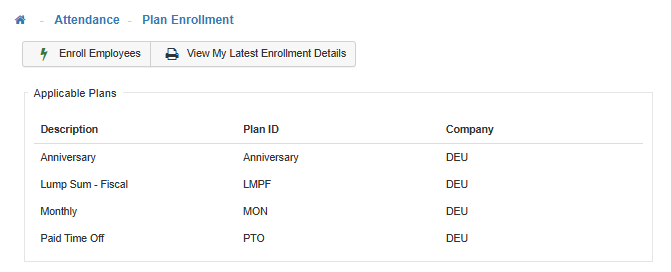
Use the Plan Enrollment process to quickly add attendance plans to more than one Employee at once. When using the Plan Enrollment feature, all Employees who qualify for the plan will be will be enrolled.
Note: To enable access to the Plan Enrollment, set the Securable 'Process Plan Enrollment' to Full Access in the Group Security Maintenance. Users in the Group Security option who have access to the Plan Enrollment will have access to the Attendance navigation menu option.
-
Plan Enrollment Process
Use the Plan Enrollment process to quickly add Attendance Plans to more than one Employee at a once by selecting 'Enroll Employees'. -
Anniversary Plans
If the plan being added is an anniversary plan, the start date for all the Employees who are adding the plan defaults to the selection made under the Attendance Plans Maintenance setting for Seniority Calculation Date (by which seniority levels are calculated). If, after performing the Add Attendance Plans process, a user wants to change the Employee's start date to a date other than their adjusted seniority date, delete the plan from the Employee, then add the plan to the Employee separately. -
View My Last Enrollment Details Report
By selecting the ‘View My Last Enrollment Details’ report, the Plan Enrollment Results report will generate, where Users can see previously enrolled Employees and their respective Eligibility Effective, Plan Start, Play Year Start, and Plan Year End dates for applicable plans.
Note: The data generated in this report will reset each time the 'Enroll Employees' process is completed, displaying the most recent batch of Employee plan enrollments.